
💡 Abstract
Editing audio online has transformed from a complex task into a fast, browser-based workflow accessible to any creator. This guide covers the fundamentals of digital audio editing. Featuring a step-by-step walkthrough of using an AI audio editor alongside answers to common FAQs, this article provides everything you need to produce quality audio.
Table of Contents
What Is Audio Editing?
Audio editing is the process of manipulating audio files to improve its quality, flow and overall clarity. Traditionally, this involves trimming unwanted sections, adjusting volume levels, removing background noise and stitching multiple tracks into a cohesive piece.
Modern online audio editing expands these basics by integrating AI, shifting the workflow from tedious waveform tweaks to creative transformation. Today’s tools allow you to automatically remaster tracks, modify musical styles or seamlessly replace specific audio sections.
How to Edit Audio Step by Step?
Editing audio online with tools like Tad AI audio editor streamlines complex studio tasks into a simple, intuitive workflow. Depending on your goals, you can selectively swap out lyrics or remaster your entire track using specialized AI controls.
Step 1: Upload Your Targeted Audio
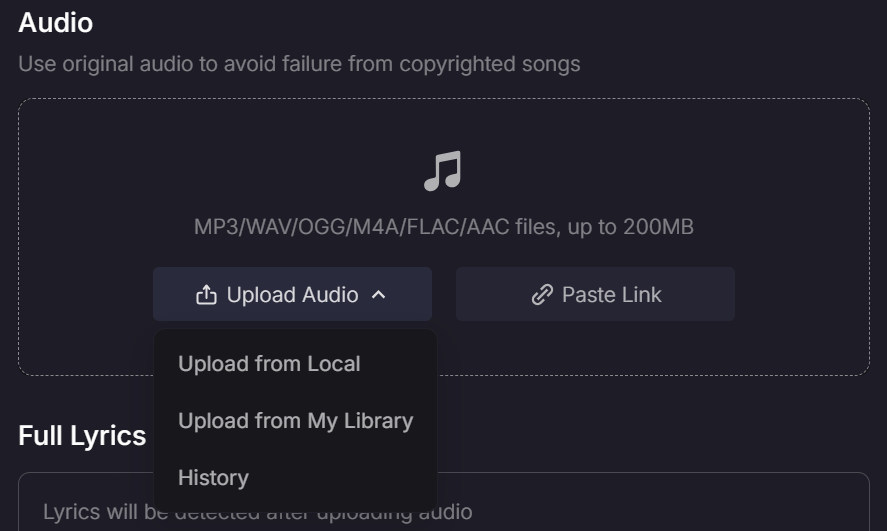
Import your original audio file into the AI music editor to prepare it for processing. You can upload audio from your local device and your Library in Tad AI, or paste an effective audio link from platforms like TikTok and Instagram for a convenient experience.
Step 2: Select Your Editing Mode
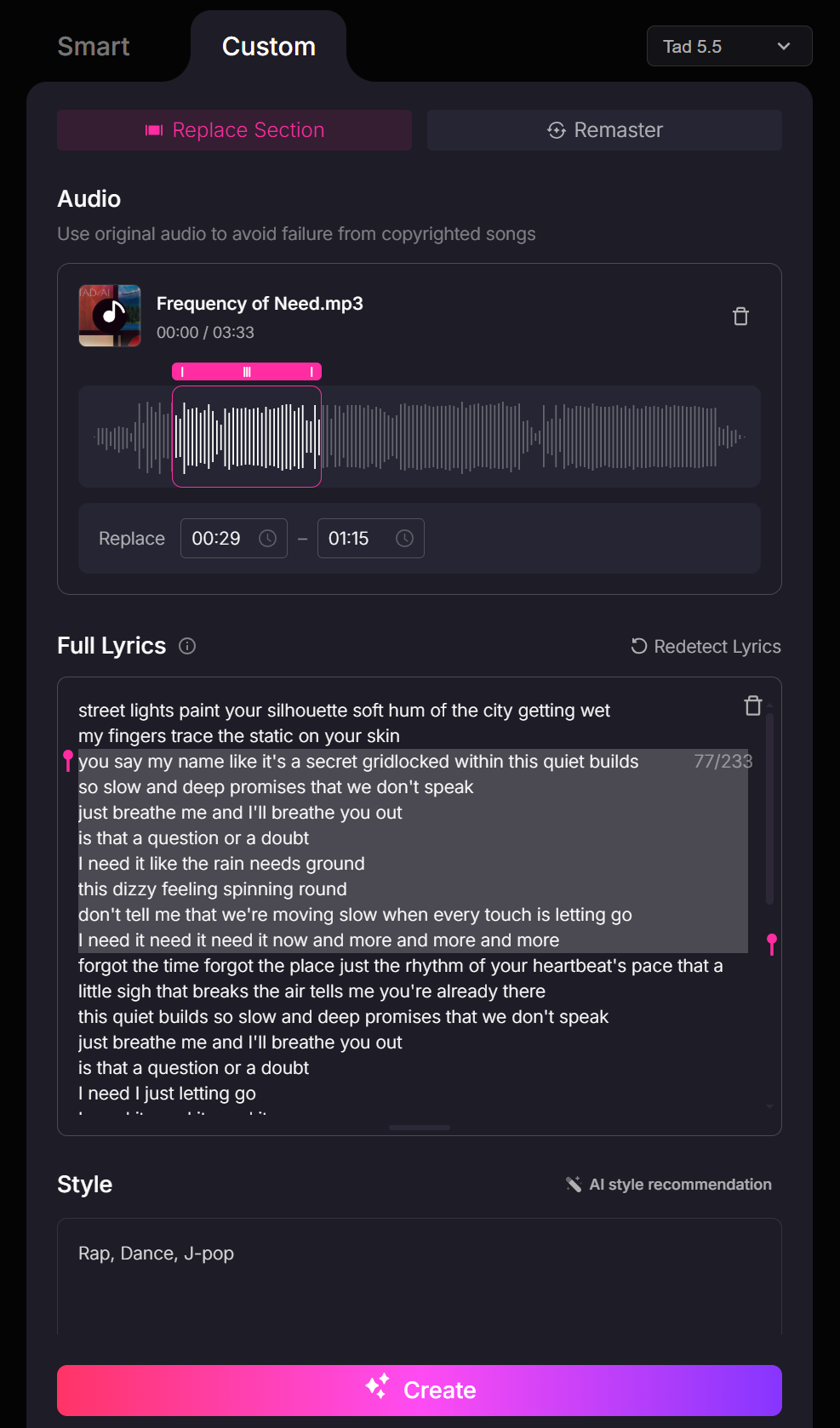
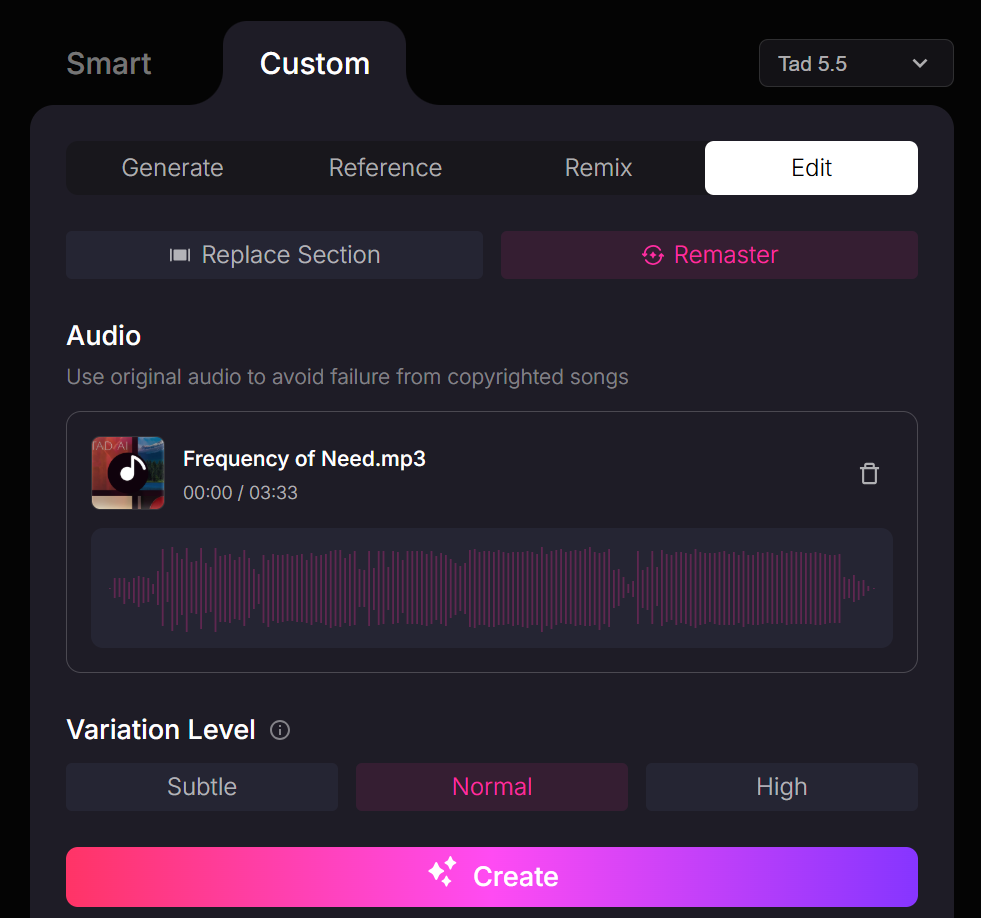
Choose the workflow that fits your project: select Replace Section mode for localized lyric and style edits, or choose Remaster mode to re-imagine your full audio’s production.
Step 3: Configure Section Replacement (Mode 1)
Highlight the specific portion of the audio you want to alter and input your replacement lyrics. Fine-tune the transformation by writing custom style prompts to guide the sound and list specific music styles to avoid in order to prevent unwanted genres from mixing in.
Step 3.5: Set Remaster Variation Tiers (Mode 2)
If you choose to remaster your audio, pick your desired level of variation: select Subtle for light polishing, Normal for balanced enhancement or High for a dramatic sonic re-imagining.
Step 4: Preview and Export
Click to generate your edited audio, review the output preview to ensure the timing and quality match your expectations, and download the finished file in lossless audio formats such as MP3 and WAV instantly.
AI Audio Editors vs. Traditional DAWs
While traditional DAWs offer manual control over individual audio waveforms, intelligent AI audio editors automate complex tasks using machine learning models and text prompts.
| Aspect | AI Audio Editor Online | Traditional DAWs |
| Learning Curve | Minimal | Steep; requires technical knowledge |
| Processing Speed | Automated transformations completed via cloud processing | Manual; costs more effort and longer time |
| Hardware Requirements | Runs entirely in a web browser without heavy local specs | Requires significant CPU capabilities and local storage |
| Best Used For | Fast content creation, quick audio polishing, prompt-based lyric replacement and style testing | Full-length song production, multitrack studio albums, and surgical audio repair |
Best Practices for Optimal AI Audio Editing Results
Achieving professional quality with AI audio editors relies on your input quality, prompt strategy and processing choices.
Start with Clean Source Audio
AI models expand on the characteristics of your uploaded file, so always use uncompressed WAV or high-bitrate MP3 audio recorded in a quiet environment. Low-quality files with existing background noise may lead to muffled remasters and unpredictable section replacements.
Write Specific Negative Prompts
Prevent unwanted genre bleed by actively listing styles to avoid during replacement mode. Explicit negative prompts keep the AI locked into your intended aesthetic and prevent distracting instrumental artifacts from bleeding into your original track.
Increment Variation Tiers Step-by-Step
Begin remastering at the Subtle tier to gauge how the model interprets your audio before pushing to higher variation levels. Incremental testing allows you to polish dynamic range and clarity without distorting original instrument placement or human vocal nuances.
Frequently Asked Questions
Do I own the rights to audio edited or remastered with AI?
Most online platforms grant you commercial rights to the audio you modify. For example, if you are a paid user of Tad AI, you can download a commercial license of your audio to ensure a hassle-free experience distributing AI tracks on social media.
Will editing audio degrade my sound quality?
No, modern browser-based editors like Tad AI process files at high bitrates and support uncompressed exports like WAV to preserve audio fidelity. Sound quality only drops if your original upload is heavily compressed or altered with extreme variation settings.
What audio file formats are best to upload and export?
For best results, upload uncompressed WAV or high-bitrate MP3 files to give the AI engine clean acoustic data. When exporting your final edit, choose WAV for master-quality production or MP3 for fast web sharing.
How does AI replace specific lyrics without ruining the backing track?
Tad AI uses vocal isolation to separate speech from instrumental layers before generating new vocal phrases matching your lyrics and text prompt. It then aligns the new lyrics to the original rhythm, tempo and pitch.
Conclusion
Online audio editing has evolved into a fast process that eliminates traditional barriers. By leveraging AI workflows—from targeted section replacement to automated remastering—you can achieve studio-quality sound just within your web browser.
If you are looking to simplify your production workflow, Tad AI audio editor offers an intuitive platform backed by precise variation levels and flexible text prompt controls. Give it a try on your next project to transform raw tracks into polished audio effortlessly!
🔒 Highly Secure · 💳 Free Plan Available · ⭐ 4.8/5 Rating