
💡 Abstract
Text to Speech is a technology that converts digital text into spoken audio, allowing users to consume written content hands-free. This guide explores how to leverage TTS technology to boost productivity during daily routines and provides a comprehensive overview of the best tools and tips for individuals to efficiently transform their digital reading experience.
What Is Text to Speech?
At its core, text to speech is a clever technology that reads digital words aloud to you. I view it as a personal narrator living inside your devices, using advanced algorithms to convert text into natural-sounding audio. It instantly bridges the gap between seeing content and hearing it.
You might wonder how this tool fits into your busy daily routine. I can assure you that whether you are multitasking or simply resting your eyes, TTS makes consuming information easy. It turns your long emails, PDFs, and articles into a custom podcast you can take anywhere.
How to Use Text to Speech in 3 Steps?
If you need a seamless voiceover, I recommend using text to speech in Tad AI for your projects. It is an intuitive platform that turns your written words into studio-quality audio in just minutes. Let me walk you through the simple steps of using this tool.
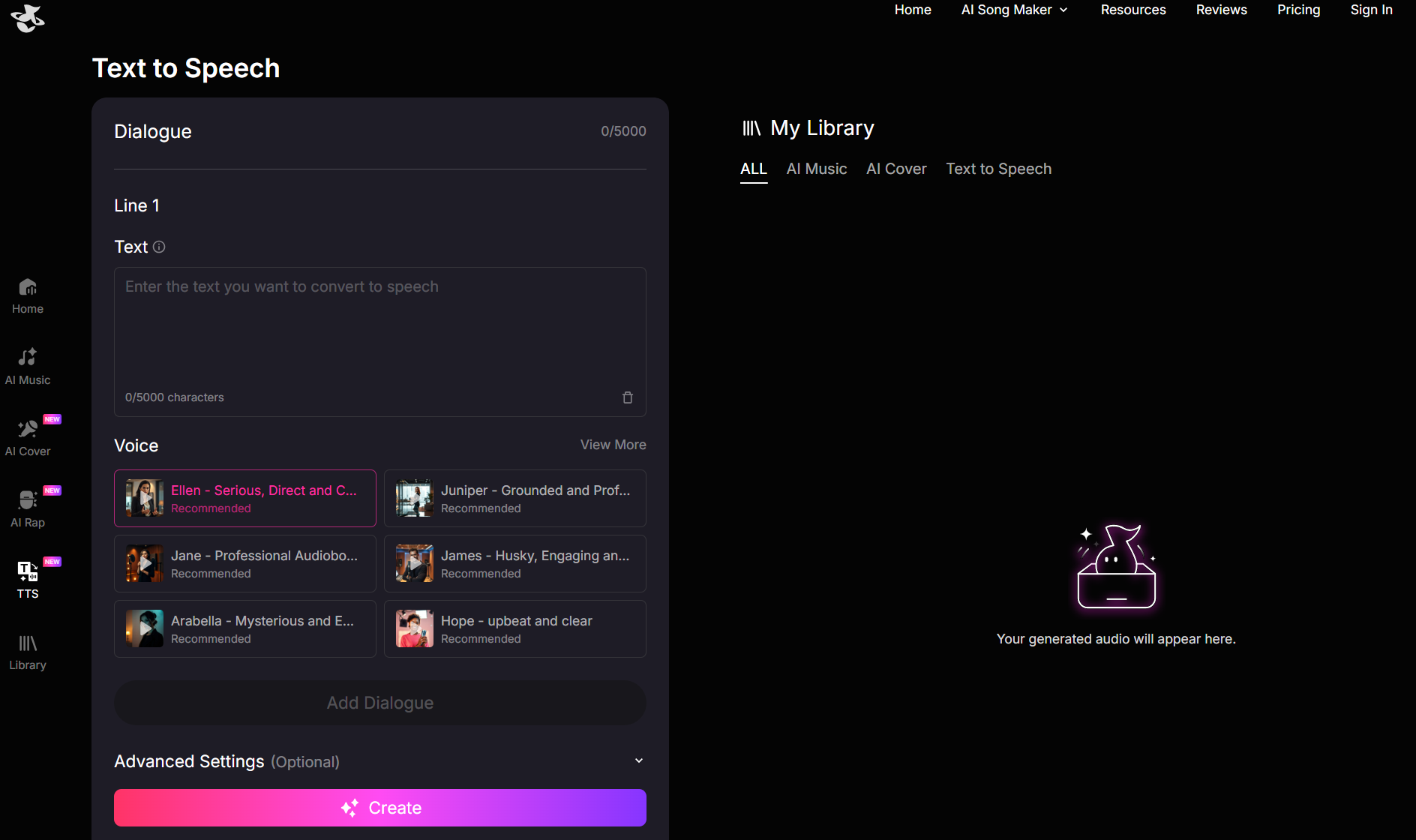
Step 1: Input Your Text and Choose a Voice
First, you will need to type or paste your target text into the provided box. Tad AI conveniently supports up to 5,000 characters per generation for your long-form content. Next, I suggest exploring the diverse library to select your preferred voice style, ranging from trendy to classic.
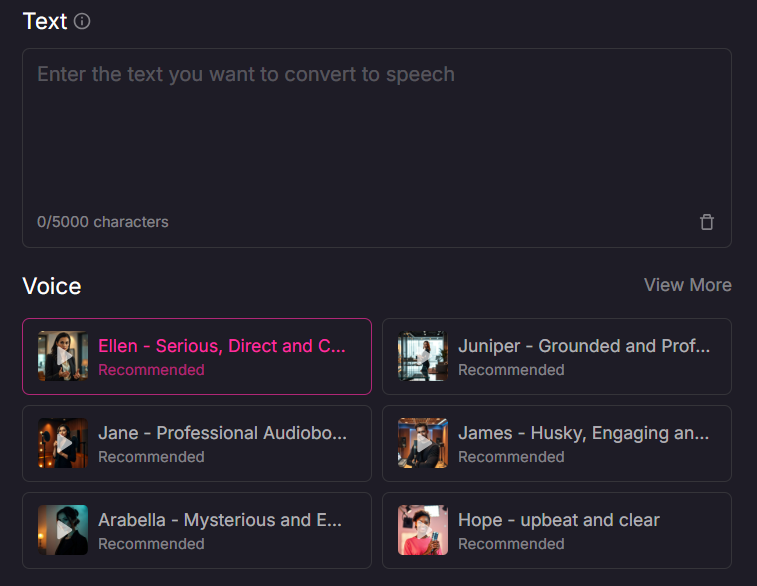
Step 2: Tweak Your Advanced Settings
Once your text is ready, you can customize the final output to fit your exact needs. I always recommend choosing the output speech language from more than 50 choices and adjusting voice stability for a more tailored result. This ensures your generated audio sounds natural and consistent.
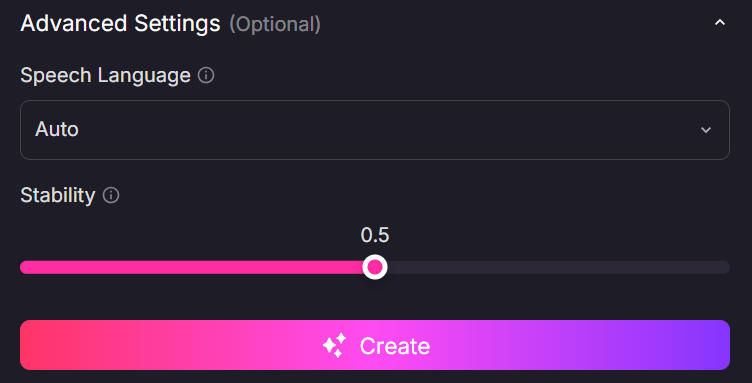
Step 3: Generate Your Speech
Finally, all you have to do is hit the “Create” button to start the rendering process. You only need to wait a few minutes for the final speech delivery to be ready. From there, you can easily use your audio in any of your creative projects.
Tips for Maximizing Your TTS Experience
Let me share a few of my favorite strategies to ensure your generated audio sounds lifelike. These quick tips will help you master the tool and create engaging voiceovers every time.
Start with Clean, Simple Text
If you want your speech to sound conversational, I recommend writing exactly how you naturally speak. Try to avoid complex jargon or tongue twisters that might trip up the AI. Keeping your sentences straightforward ensures the voice flows as smoothly as possible.
Use Punctuation for Pacing
Never underestimate the power of a simple comma or period in your text! I use punctuation as a direct roadmap to tell the AI where to pause and take a breath. It is the secret ingredient to preventing your generated audio from sounding rushed or robotic.
Match the Voice to Your Audience
You would not want a serious voice narrating a lighthearted and funny story. Take a moment to experiment with different voices, adjusting stability until it perfectly matches your content. I find that choosing the right settings instantly elevates your entire listening experience.
Conclusion
Incorporating text to speech technology into your workflow is truly a game changer. I hope this guide has shown you just how easy it is to transform your written text into an engaging, listenable format.
If you are ready to jump in and start creating, I recommend trying out the text to speech tool offered by Tad AI. It provides an intuitive process, high-quality audio and a massive library of voices to perfectly suit your needs.